
Compare, Save and Share Different Versions of a Drawing
Explore styles from one drawing, review the latest saved result and use the regenerate, download, share and delete controls in the studio and My creations.
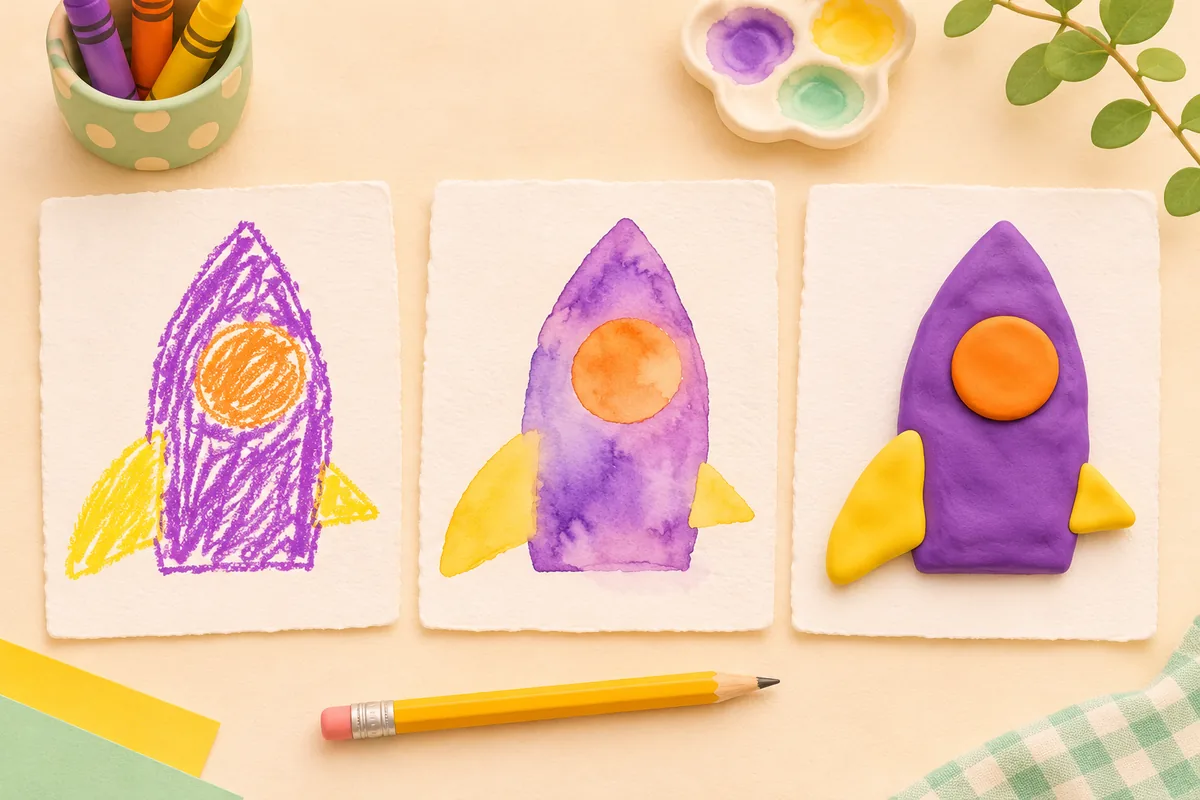
The same purple rocket can become a soft illustration or a rounded cartoon while its crayon original remains the reference. Keeping the versions together makes it easier to compare what changed and decide which one to save. Start with one drawing in the studio, then return to the project through My creations.
The cover illustration shows the idea of exploring versions. It is not a promise that the model will preserve every line or produce those exact pictures.
Change one setting before making the next version
Choose an initial style and describe the features that matter. Generate a result, compare it with the original, then change one part of the request. You might keep the purple rocket and orange window while switching the visual style.
This makes the next comparison useful: you can see whether the new direction fits the drawing without also changing the subject, frame and description. See the plush character guide or imaginary scene guide for focused examples.
Return to a saved result
When you are signed in, the creation page restores your most recent generated project when available. A project you open explicitly takes priority. A local draft is restored when there is no saved result to show; manual uploads remain your choice. Use My creations to browse other saved projects and select an available image or video.
For images, use the comparison slider to inspect the original against the selected result. Pay attention to the silhouette, colors and unusual features. Download the version you prefer before doing any cleanup.
What the four action buttons do
Regenerate
Repeats the selected result’s saved source and settings after you confirm the credit cost. It creates a new attempt, which can differ from the previous result.
Download
Saves the selected existing image or video. It does not start a new generation.
Share
Lets you enable a public project link, then choose a sharing destination or copy the link.
Delete
Asks for confirmation before deleting the project, including its original and generated versions.
To change the style or description, edit the settings in the studio and use the generate control. Regenerate is useful when you want another attempt with the saved settings. Each new attempt uses credits; check the credit guide if you are planning several versions.
Choose what to share before enabling the link
Drawings begin private. A share link makes the project available to people who have that link, so check the original and its saved results for personal information first. You can revoke sharing later; that cannot remove copies someone has already downloaded.
The menu offers X, Facebook, LinkedIn, Pinterest, WhatsApp, Telegram, Reddit, TikTok and Copy link. Social destinations open their own sharing flow. The TikTok option copies the link and gives you instructions to download and upload the media; it does not publish to your account automatically.
Treat deletion as project cleanup
The delete action removes the project rather than just hiding the selected preview. Read the confirmation, download anything you want to keep and then decide whether to proceed. For a project you still want to edit, keep it in My creations and select another saved result instead.
Open My creations to review your saved work, or upload a new drawing to explore a different idea.