
Build an Imaginary World from a Child’s Drawing
Use a child’s drawing of a garden, treehouse or tiny planet as the starting point for a new scene. Learn what to describe, which style to try and what to check.
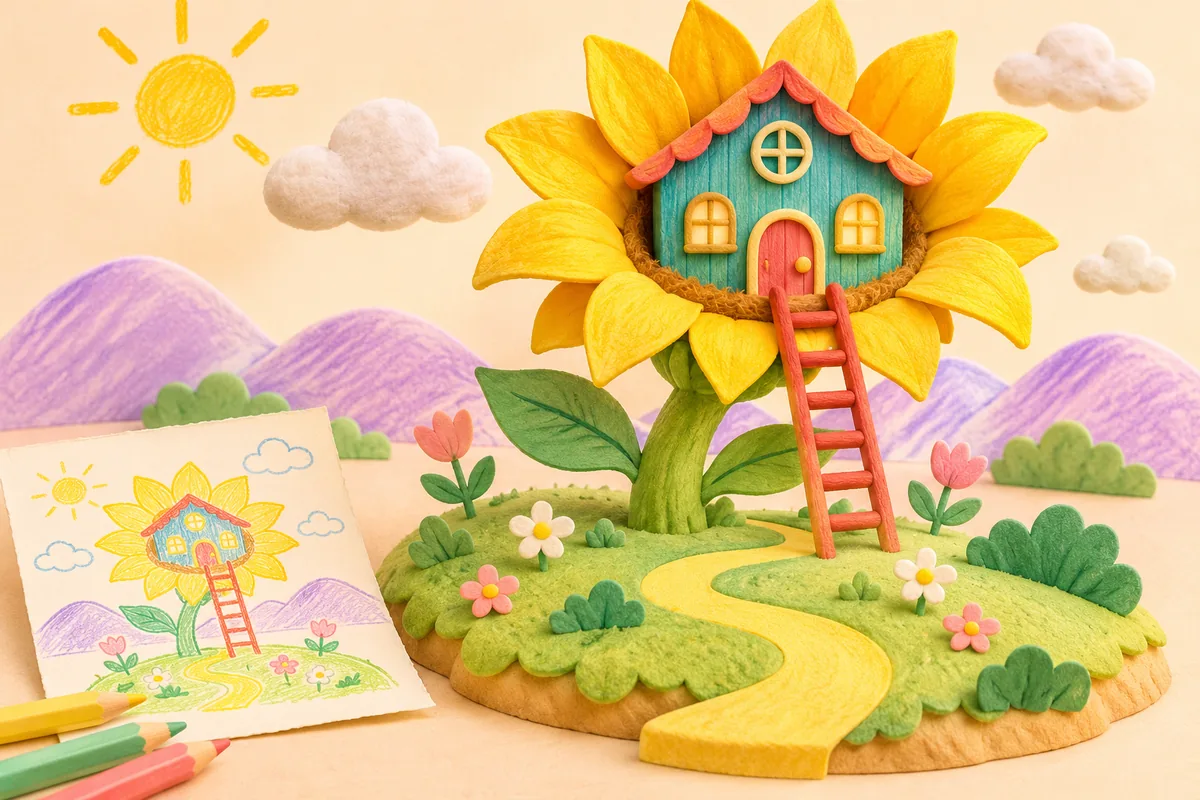
A treehouse inside a sunflower can be the starting point for a whole scene. Upload the drawing, describe how its parts fit together and choose a style to explore it in the drawing studio. You can start from a landscape as well as a character.
The picture above is a concept illustration. Your result depends on the uploaded drawing, selected settings and model output.
Keep the important parts of the scene in the photo
For a scene, the space between objects can matter as much as their shapes. Include the path that connects the garden to the house, or the moon that makes the tiny planet recognizable. Crop away the table and personal information while keeping the drawing’s composition.
Ask your child to explain the picture before writing a description. A blue shape may be a river, a slide or a dragon’s tail. Their explanation helps you describe the scene without guessing at its meaning.
Describe relationships, colors and scale
Start with what is where, then mention the details to keep. For example:
A teal treehouse inside a giant yellow sunflower. A red ladder reaches the ground. Keep the curved yellow path, lilac hills and three small clouds behind the flower.
This gives the scene a structure. If the model changes the ladder into a door or moves the path, adjust that specific instruction on the next attempt. Avoid adding many unrelated objects at once.
Choose the visual direction and frame
Real world explores lighting and natural textures. 3D cartoon gives the scene rounded, illustrated forms. Keep it hand-drawn is a direction for retaining more of the drawn appearance, although individual lines may still change.
Choose a landscape frame for a wide garden or a portrait frame for a tall treehouse. Check the preview and selected aspect ratio before generating. Changing the ratio can change the composition; it does not guarantee that every part of the original stays in the same place.
These styles create a flat image. A dimensional-looking result is not an interactive world or a downloadable 3D model.
Review one change at a time
Compare the major objects, their positions and the colors your child chose. Save a version before trying another visual direction. If the scene becomes too busy, simplify the description rather than adding more instructions.
Each new generation uses credits. Review the displayed cost before you start, and use My creations to return to saved results. The version comparison guide explains the download, sharing and regeneration controls.
Create a scene from your drawing, or explore the plush-style character guide for a different kind of drawing.